Import transactions
Importing brings a bank file into Whisper Money when automatic syncing is not available for that bank, or when you would rather do it yourself.
This imports one file into one account. To bring over a whole export from another app, with many accounts and its categories, use Import from another app.
Quick start
- Choose the account.
- Upload the bank file.
- Map the columns.
- Check the preview.
- Import selected transactions.
- Review categories and duplicates after import.
Import flow
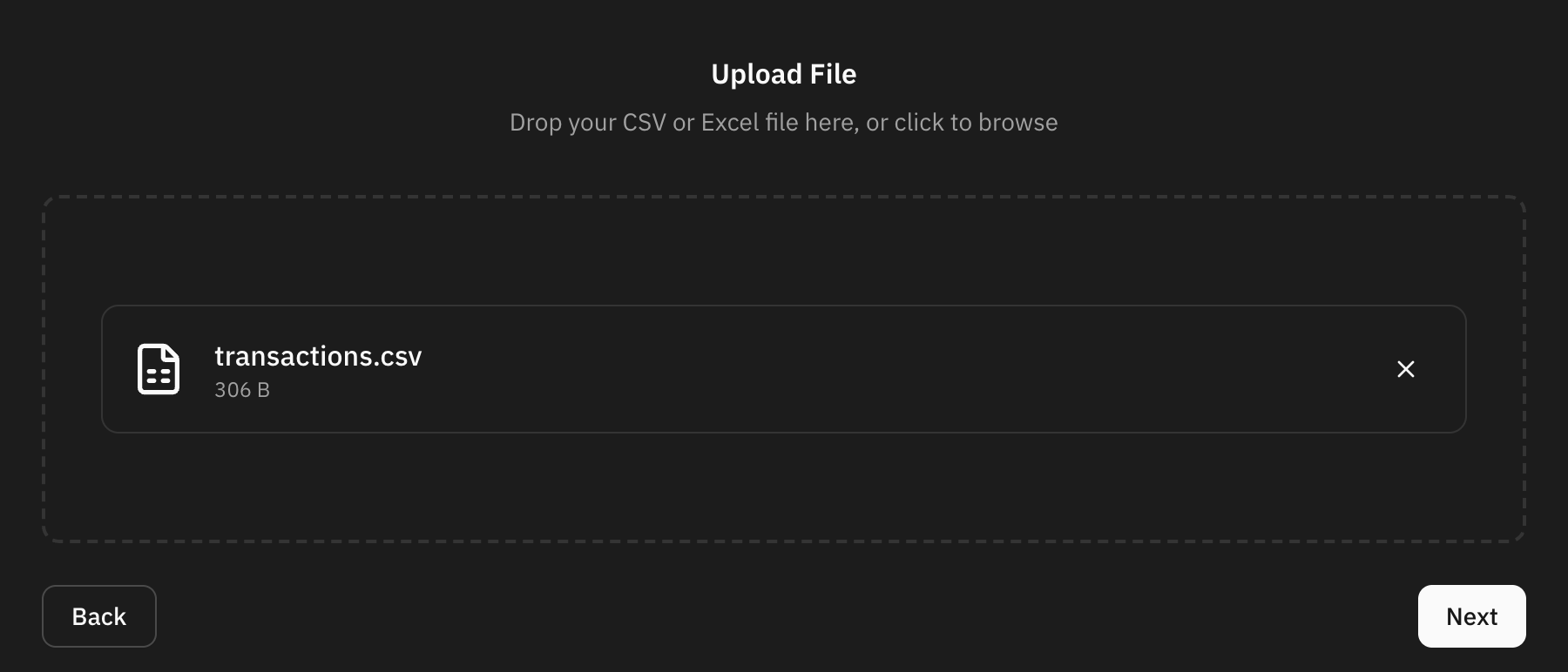
The drawer asks which account the file belongs to, then for the file itself.
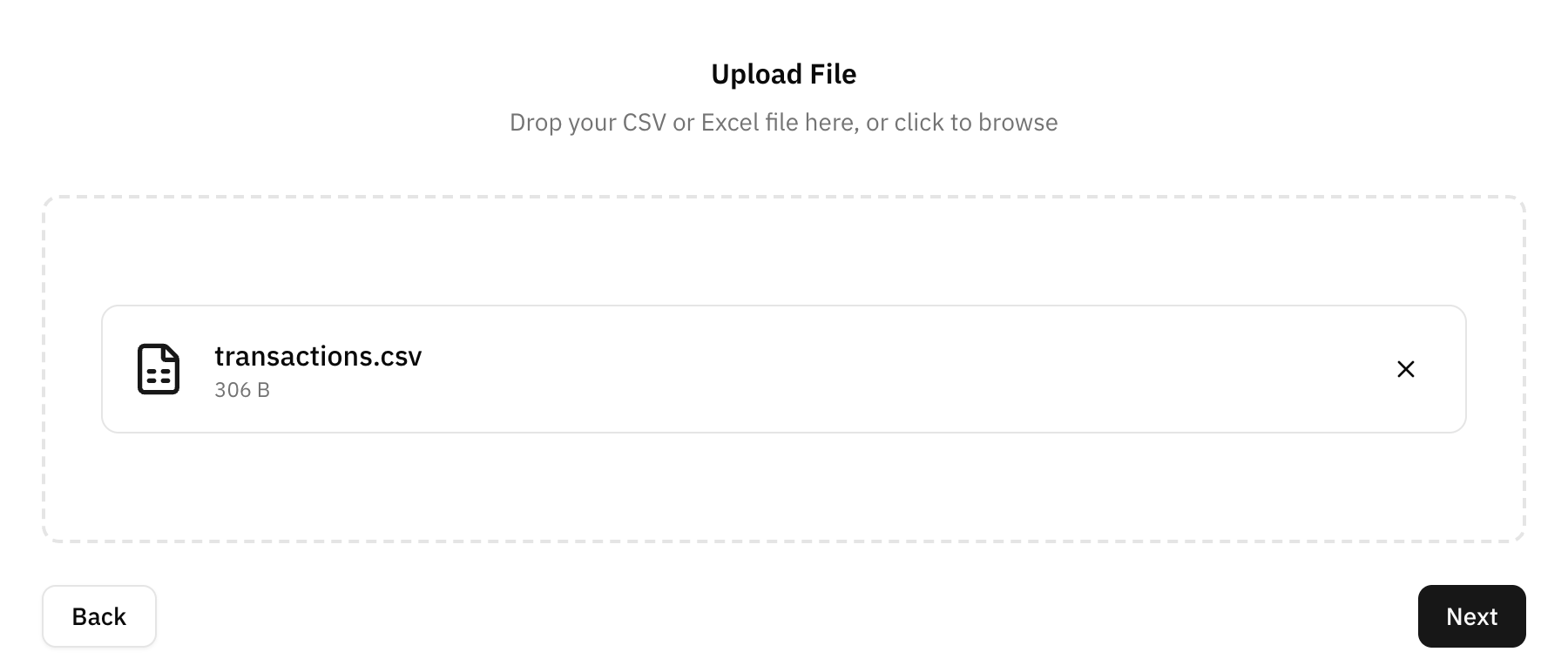
Required columns
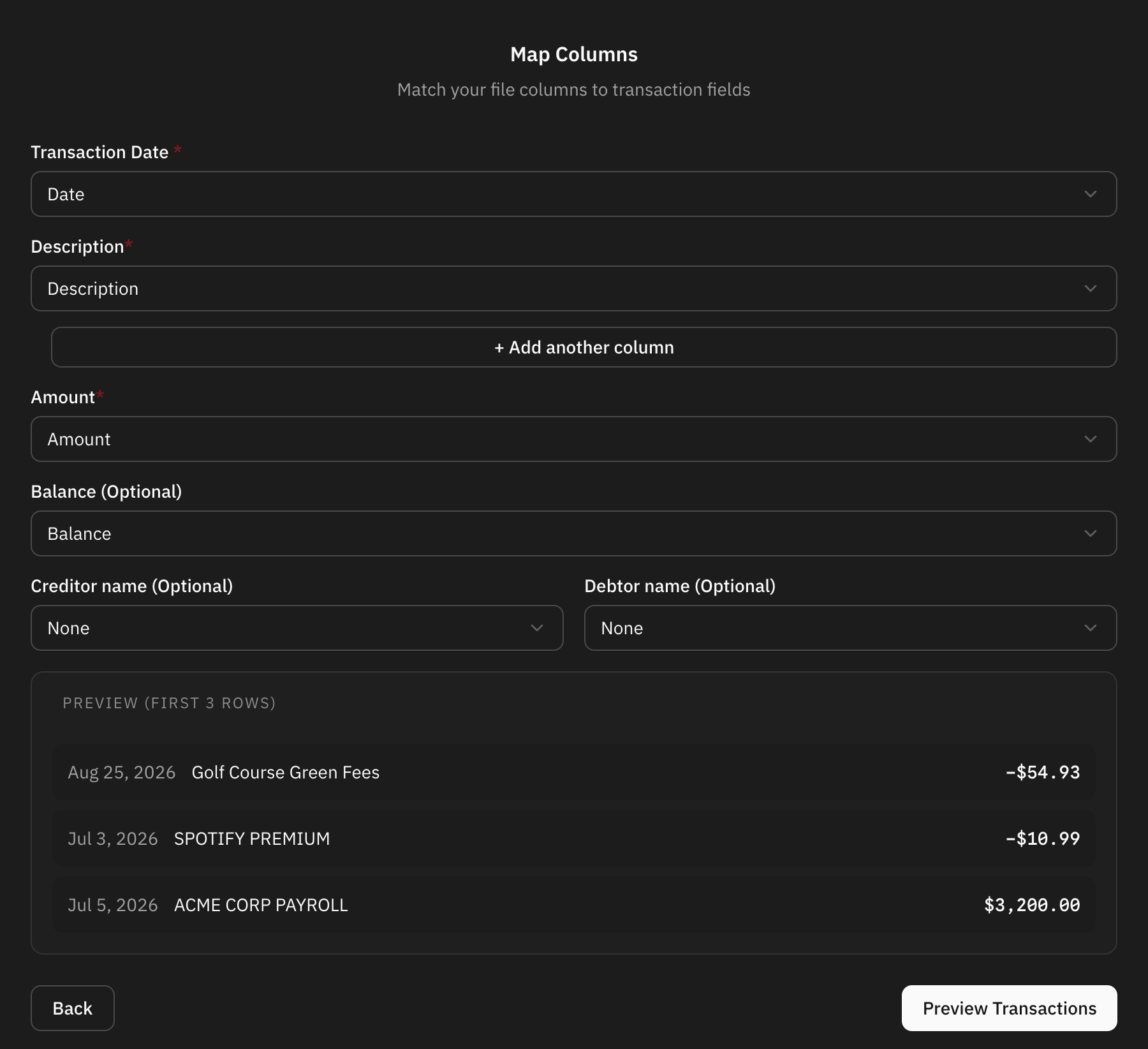
Whisper Money reads the header row and guesses which column is which. The guesses are yours to correct, and the mapping is remembered per account for next time.
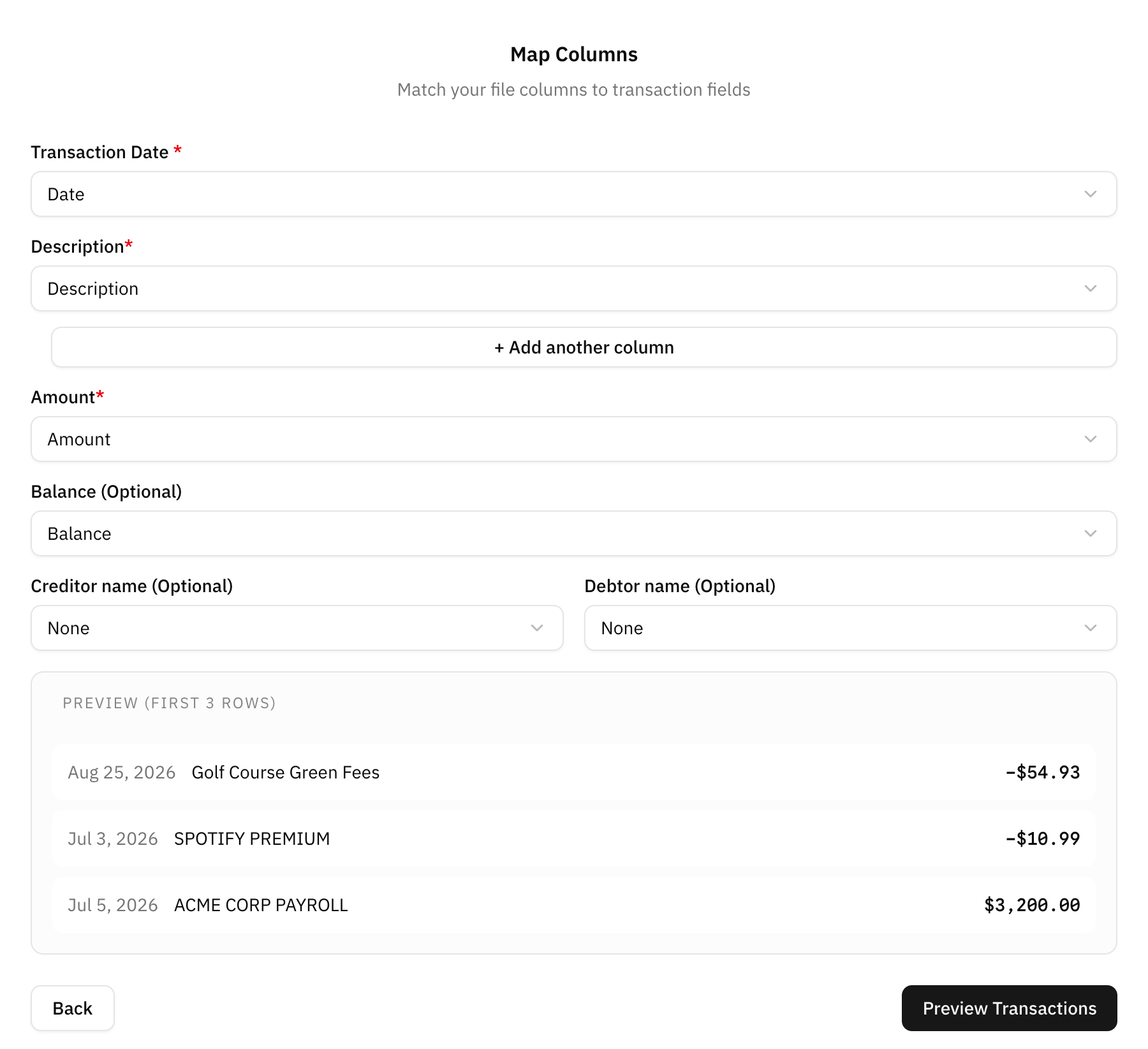
Date
The transaction date.
Whisper Money can detect common date formats, but you can adjust it if needed.
Description
The text that explains the transaction.
You can combine description columns when the bank splits details across fields.
Amount
The transaction amount.
Make sure income and expenses use the correct sign.
Balance
Optional.
Use this when the file includes running account balances.
Balances and imports
Some files include a running balance column and some do not.
When the file has one, map it and the balance history follows the import. When it does not, the import brings in the transactions only, and the account keeps whatever balances you have entered yourself.
Working out the balance history from the transactions and one known balance is not available yet. Until it is, set the balances yourself: a file of them can be brought in from Import balances, and a single figure can be corrected in Edit balances.
Preview before importing
Always review the preview. Rows that look like transactions you already have are flagged and unticked for you, so importing the same file twice does not double your history.
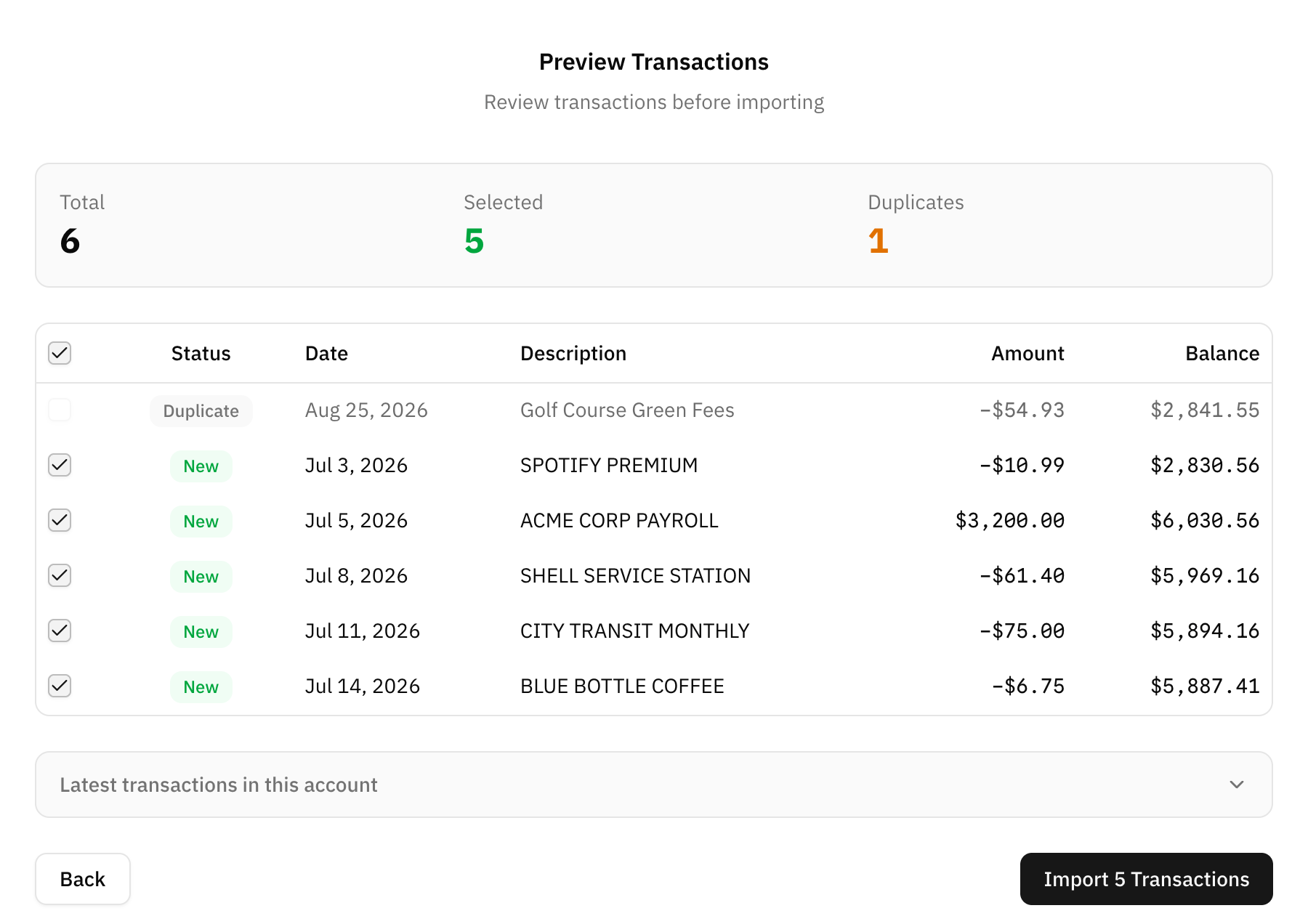
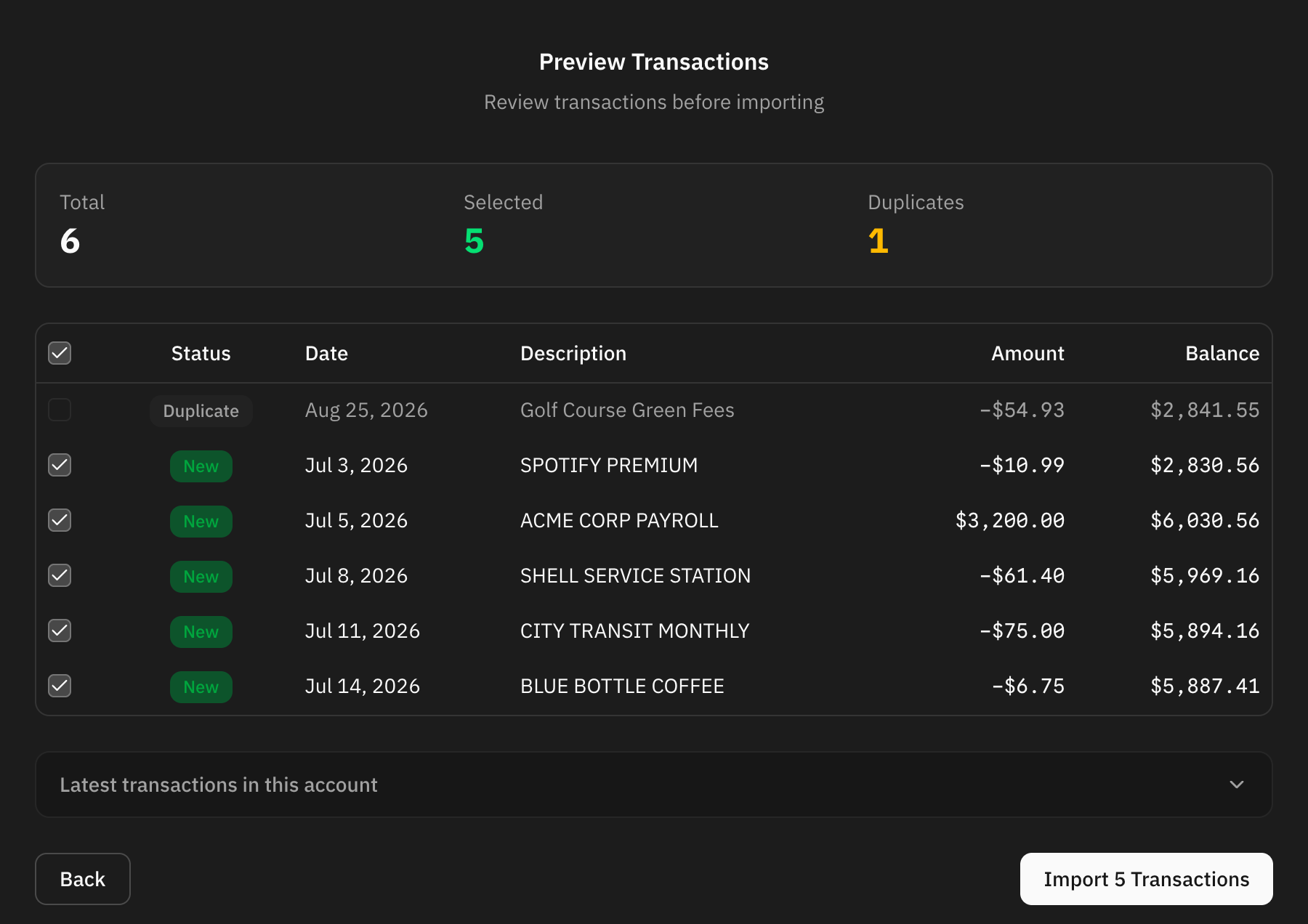
Look for:
- Rows flagged as duplicates that are actually two real payments of the same amount on the same day.
- Wrong dates.
- Amounts with the wrong sign.
- Duplicate transactions.
- Missing descriptions.
- Unexpected empty rows.
Automation during import
Automation rules can help categorize imported transactions.
This works best when descriptions are consistent. If imported rows come from the same bank file format every time, rules become very useful.
FAQ
Which file should I use?
Use the cleanest export your bank provides. CSV and spreadsheet-style files are usually easiest.
Why are amounts reversed?
Some banks export expenses as positive numbers. Check the preview before importing.
Can I import the same file twice?
Yes. Before the preview, Whisper Money checks each row against the transactions the account already has and flags the ones that match on the same day, amount, and description. Flagged rows are unticked for you, so importing the file again brings in only what is new. The count is shown above the preview, and you can still tick a row back on if it is a genuine repeat payment.