Import from another app
Coming from another finance app? Bring its whole export over in one go: your accounts, your categories with their subcategories, every transaction with its notes, and the daily balances when the file has them.
Quick start
- Open Settings → Import from another app, or Coming from another app? on the accounts step while you set up your account.
- Say where you are coming from and upload the file.
- Check the columns.
- Decide what happens to each account.
- Check the categories.
- Review and import. It runs in the background, so you can close the tab.
When you can use it
The full import is for moving in, not for every day. You can start one:
- While you are setting up your account.
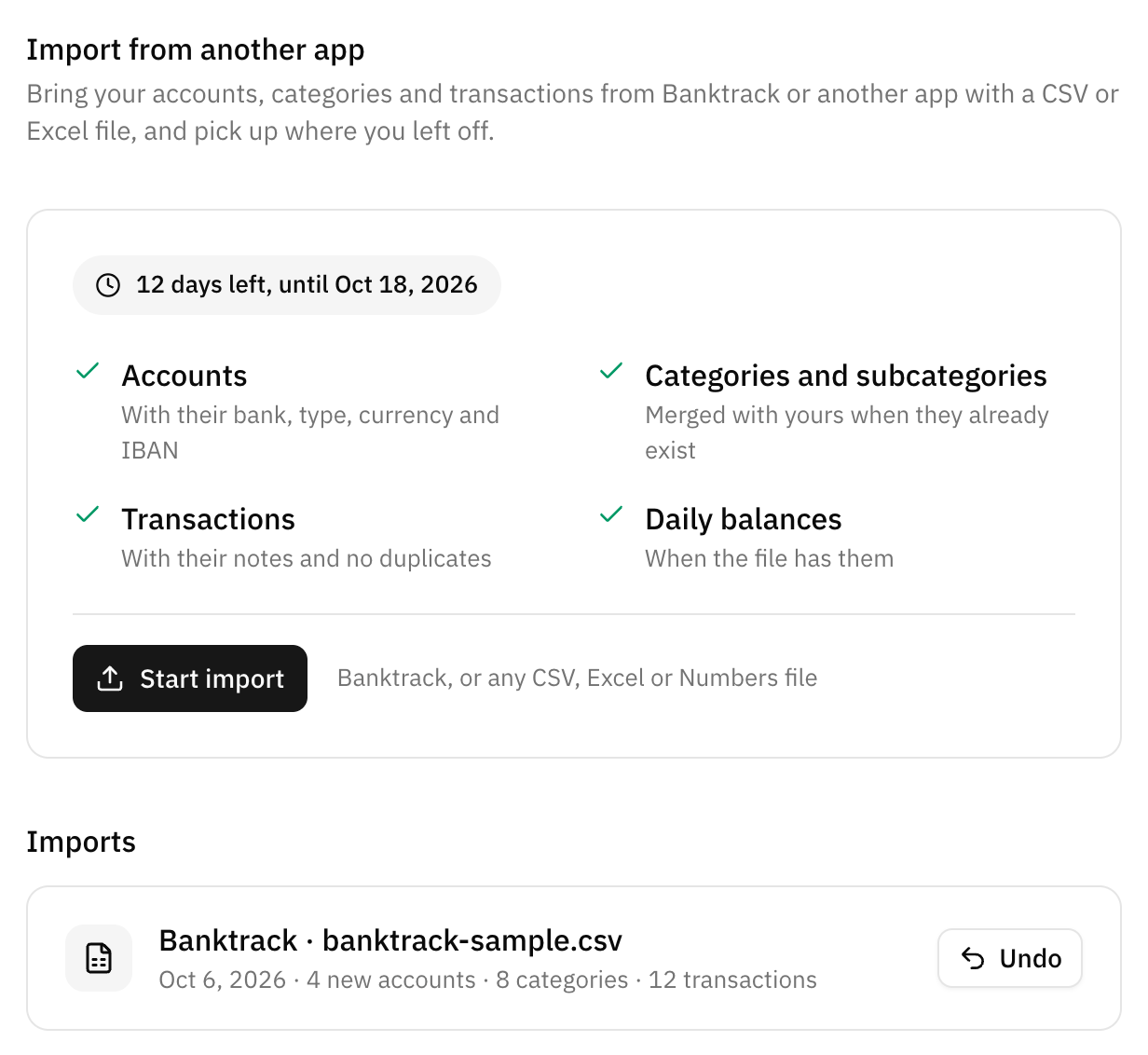
- During the 15 days after you finish setting it up. The Settings page shows how many days are left.
- After that, on request: write to us and we can open it for your account.
Once those days are over, the Settings page stays for as long as you have an import you can still undo. To bring a bank statement into one account at any time, use Import transactions instead.
What your file needs
One file, exported from your previous app or kept by you:
- CSV, XLS, XLSX or Numbers, up to 10 MB.
- One row per transaction.
- A date, an amount in a single column with expenses negative, and a description.
- A column saying which account each row belongs to. Without one, choose All rows are one account and every row goes into a single account named after the file.
Your browser reads the file. Nothing is saved until you confirm the last step, and only the columns you map are imported.
Coming from Banktrack? Its export is recognized and filled in for you: see Import from Banktrack.
The import, step by step
File
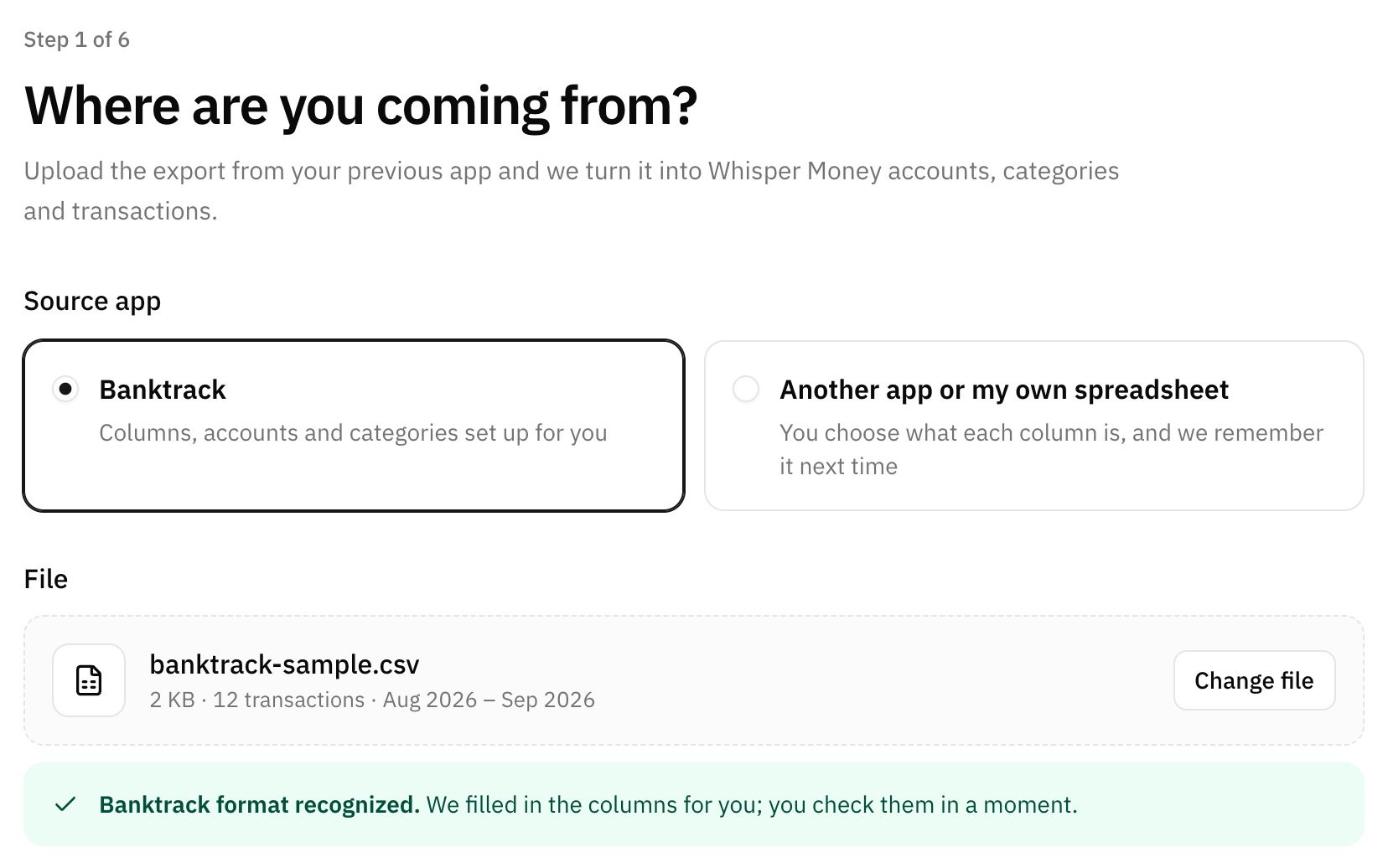
Pick where you are coming from: Banktrack, or Another app or my own spreadsheet. Then upload the file. A Banktrack export is recognized by its headers whichever you picked, and its columns are filled in for you.
Your current data
This step only appears when your space already has accounts.
- Add to what I have keeps everything. In the accounts step you can send a file account into one of your manual accounts, and the transactions it already has are skipped.
- Start from scratch deletes your manual accounts, with their transactions and balances, before importing. Your categories, labels and rules stay, and so do your connected accounts. It cannot be undone.
A connected account is never touched either way. If the file has transactions from it, they go into a new manual account, so they never mix with the ones the bank sends.
Columns
Each piece of a transaction comes from one column of your file. Whisper Money guesses what it can, you correct the rest, and the choice is remembered for the next file from the same app.
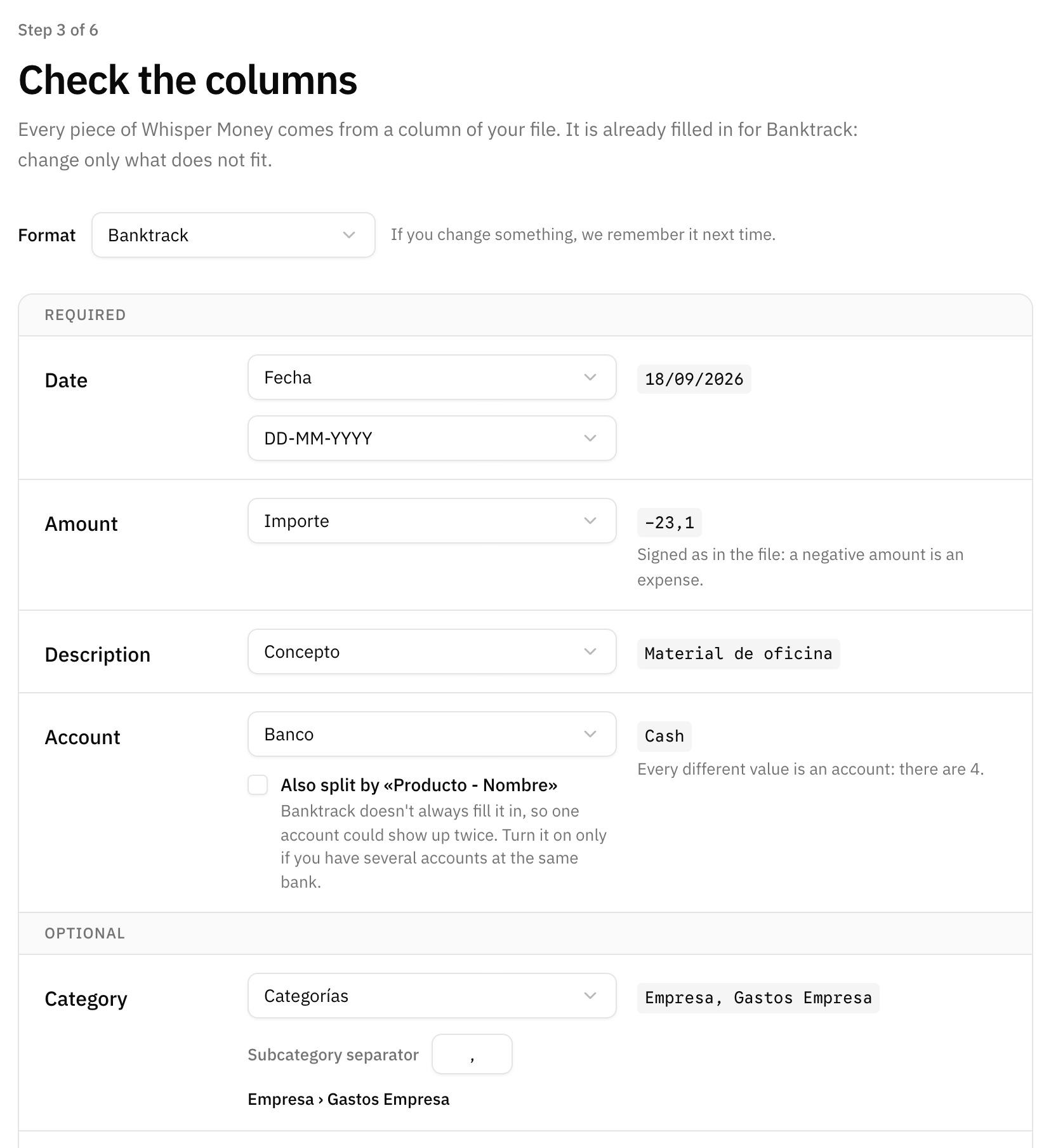
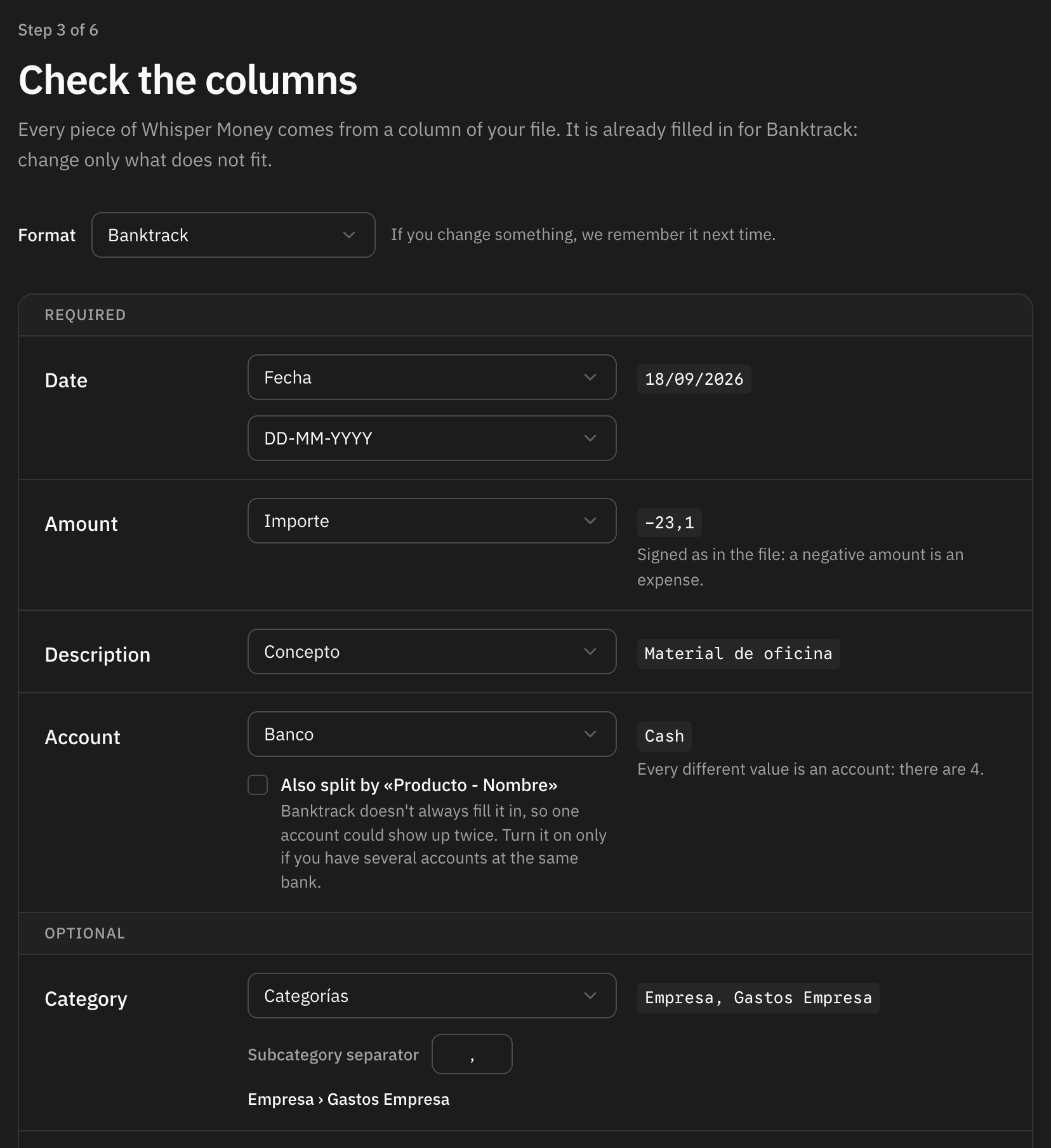
Required
- Date, with its format.
- Amount, signed as in the file: a negative amount is an expense.
- Description.
- Account: each different value becomes an account. Choose All rows are one account when the file has no such column.
Optional
- Category, with the subcategory separator:
Home, Repairsbecomes Home › Repairs, up to three levels. - Balance, for the daily balances.
- Notes, Currency, IBAN.
- Transaction ID, so importing the file again duplicates nothing.
- Ignored, for rows the other app left out of its totals.
Below the columns, a preview shows how the first transactions will look. Rows that cannot be read are listed with the reason, blank rows are skipped, and the columns you leave unmapped are named so you know what stays behind.
Accounts
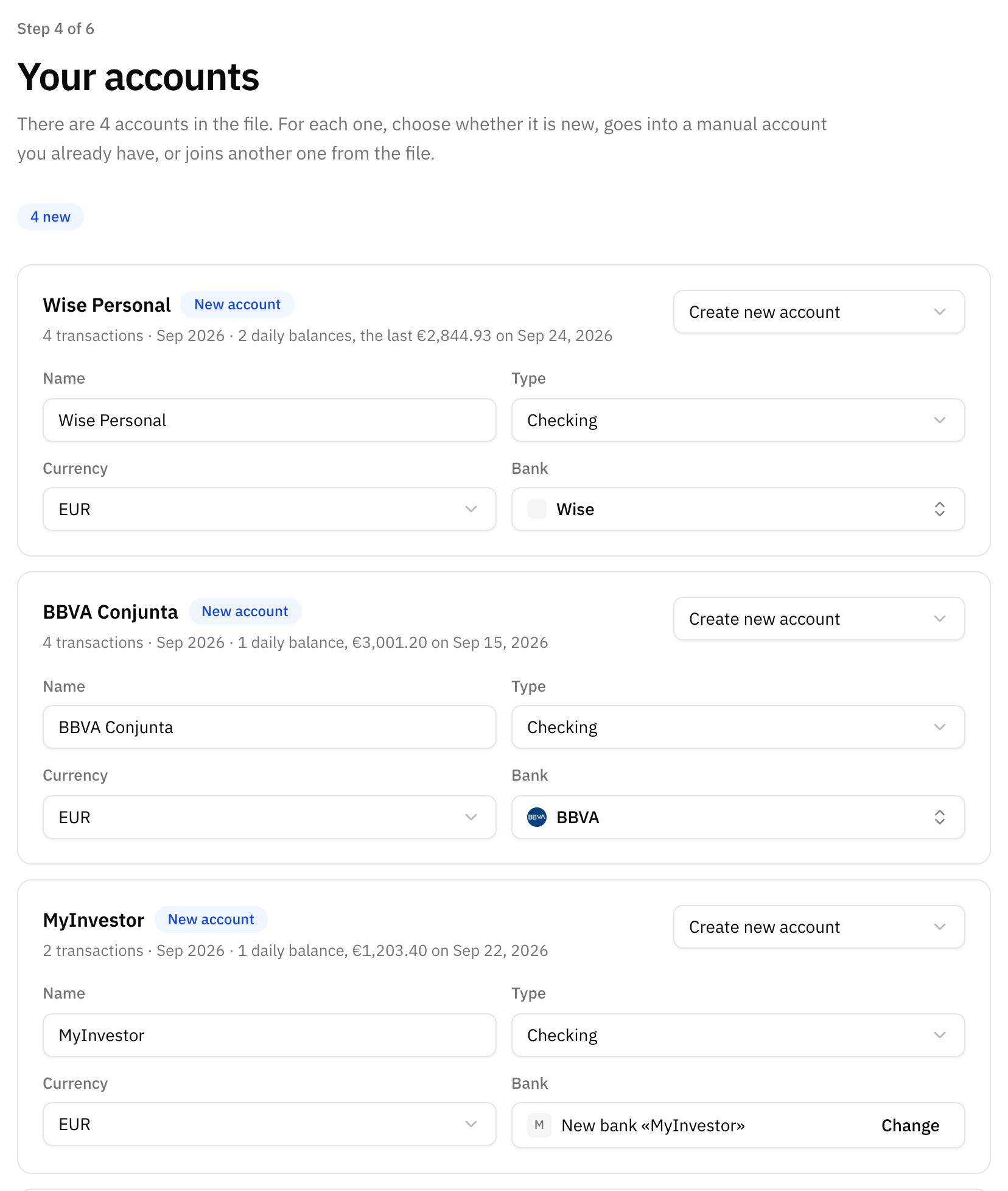
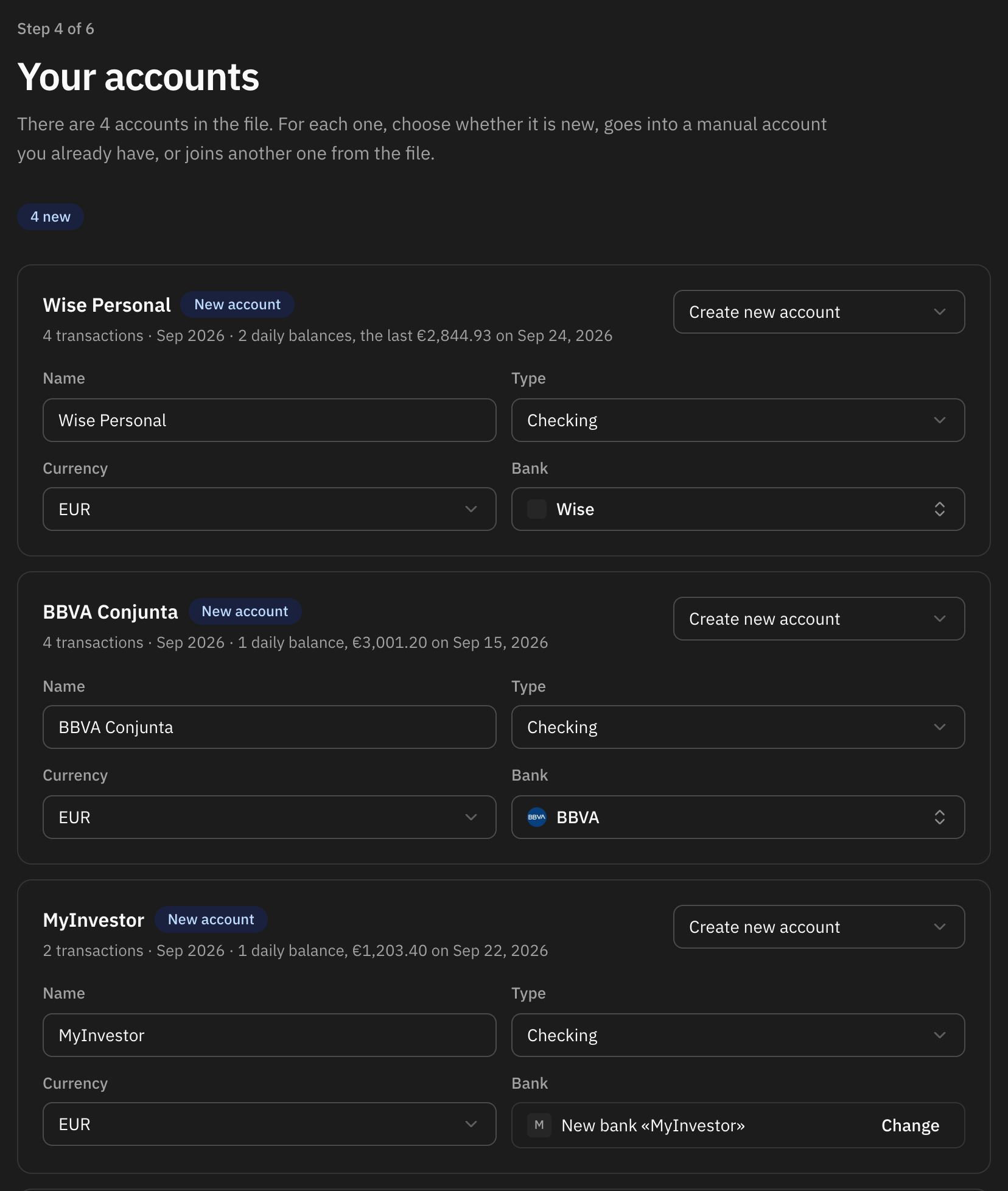
Every account in the file is listed with its transactions, its dates and the balances it carries. For each one, choose:
- Create new account.
- Add to one of my accounts: one of your manual accounts. A file account with the same name as one of them goes there by default.
- Merge with another from the file.
- Don't import.
The name, the type (checking, savings, credit card or others), the currency and the bank can all be changed. The bank is looked up by name; when our list has no match, a bank of your own is created with the name from the file. Cash accounts get no bank. An IBAN is saved on the account, unless the file only shows part of it.
Categories
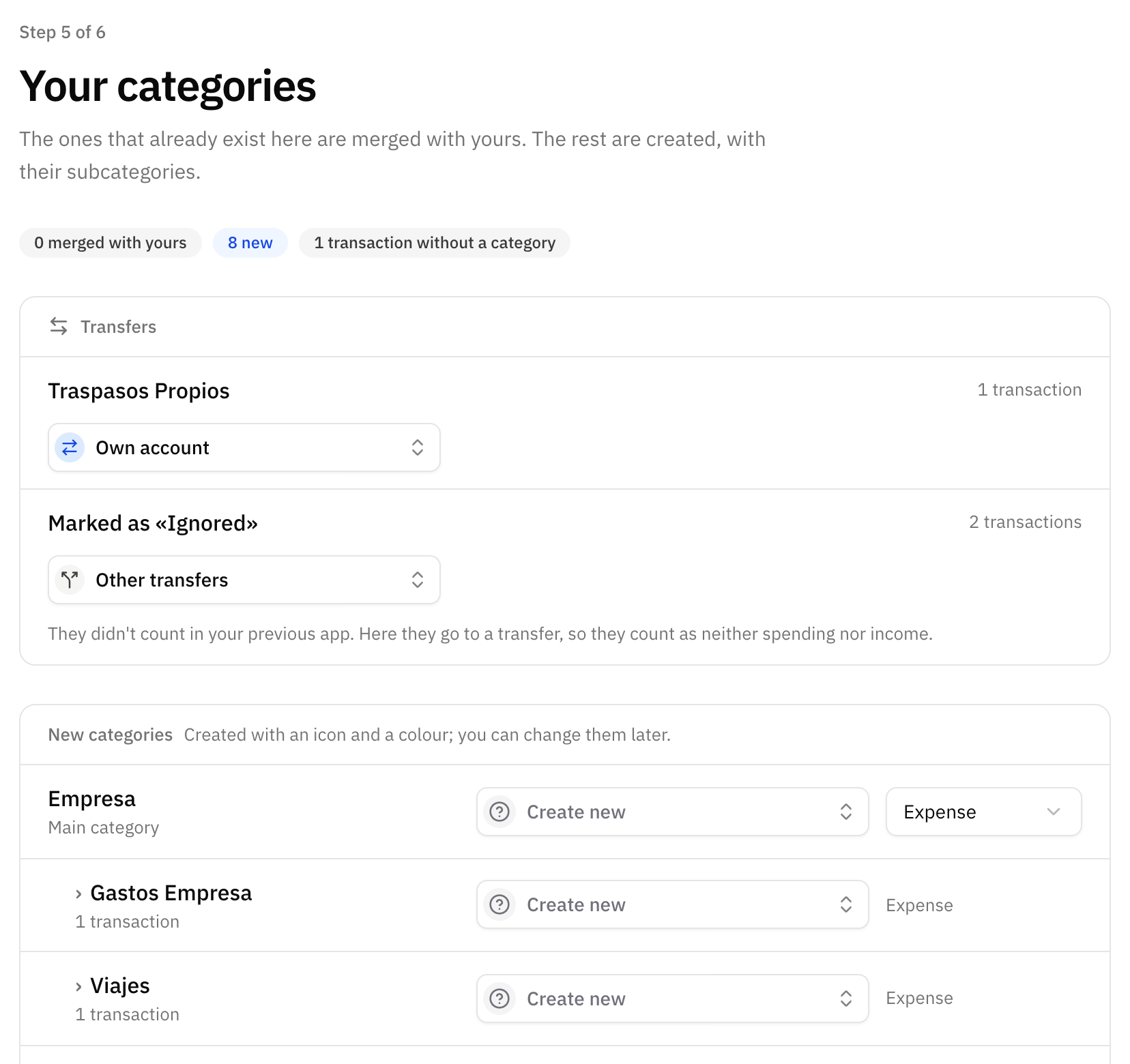
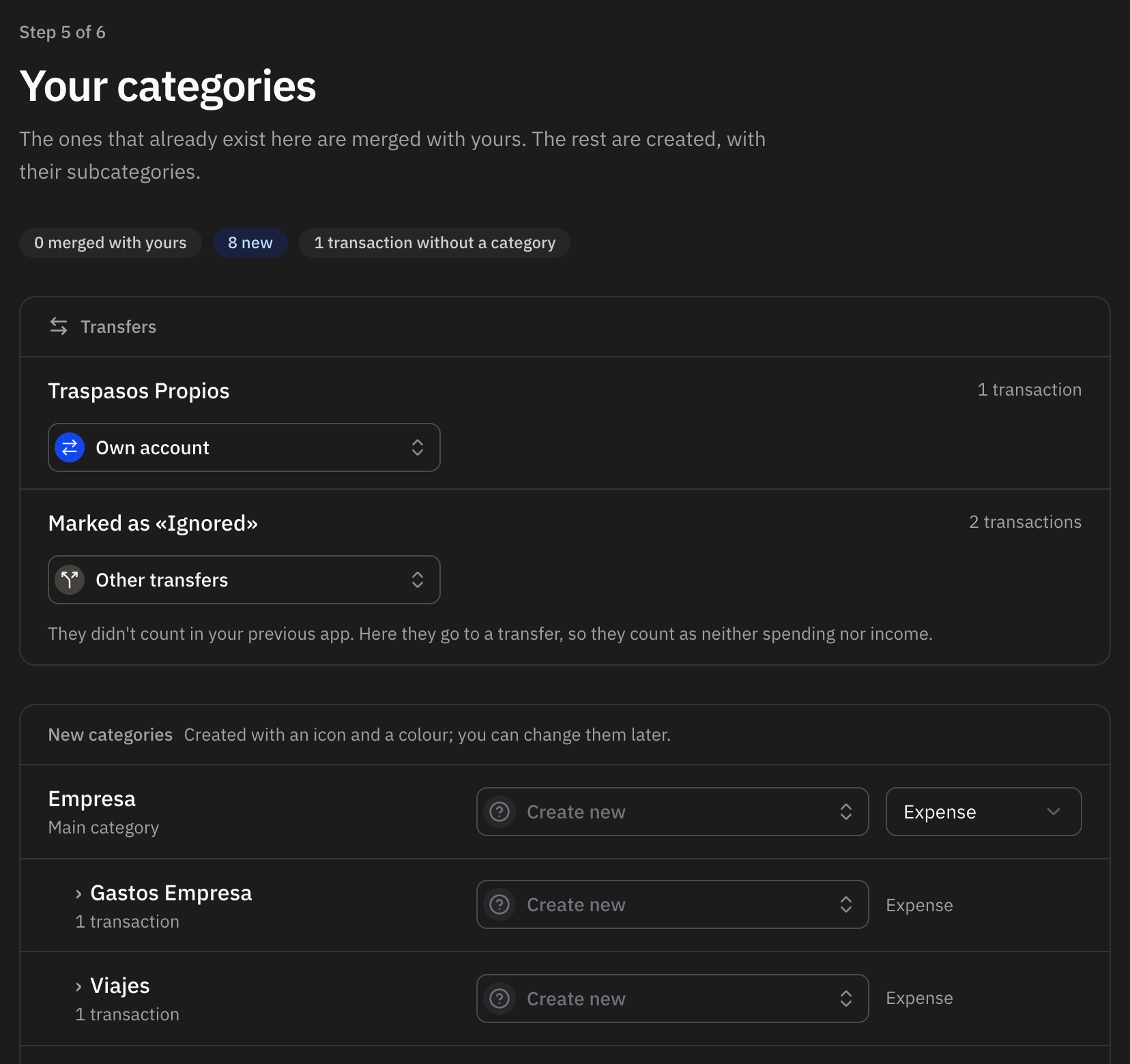
Each category in the file is matched against yours by name. The ones you already have are merged, names that only look alike are flagged Similar, review it, and the rest are created with their subcategories. You can send any of them into one of your categories instead.
Transfers get their own section:
- A category named "Traspasos Propios", "Transferencias propias" or "Own transfers", the way Banktrack and other apps name the transfers between your own accounts, goes to your Own account transfer category.
- Rows the other app marked as ignored go to a transfer category, Other transfers unless you pick another, so they count as neither spending nor income.
Review
A summary of what will be created: new accounts, new categories, transactions and daily balances. When transactions go into accounts you already have, it says how many are new and about how many are already there. If you chose to start from scratch, you confirm the deletion here.
Import
The import runs in the background. You can close the tab and come back later: the progress is waiting in Settings.
After the import
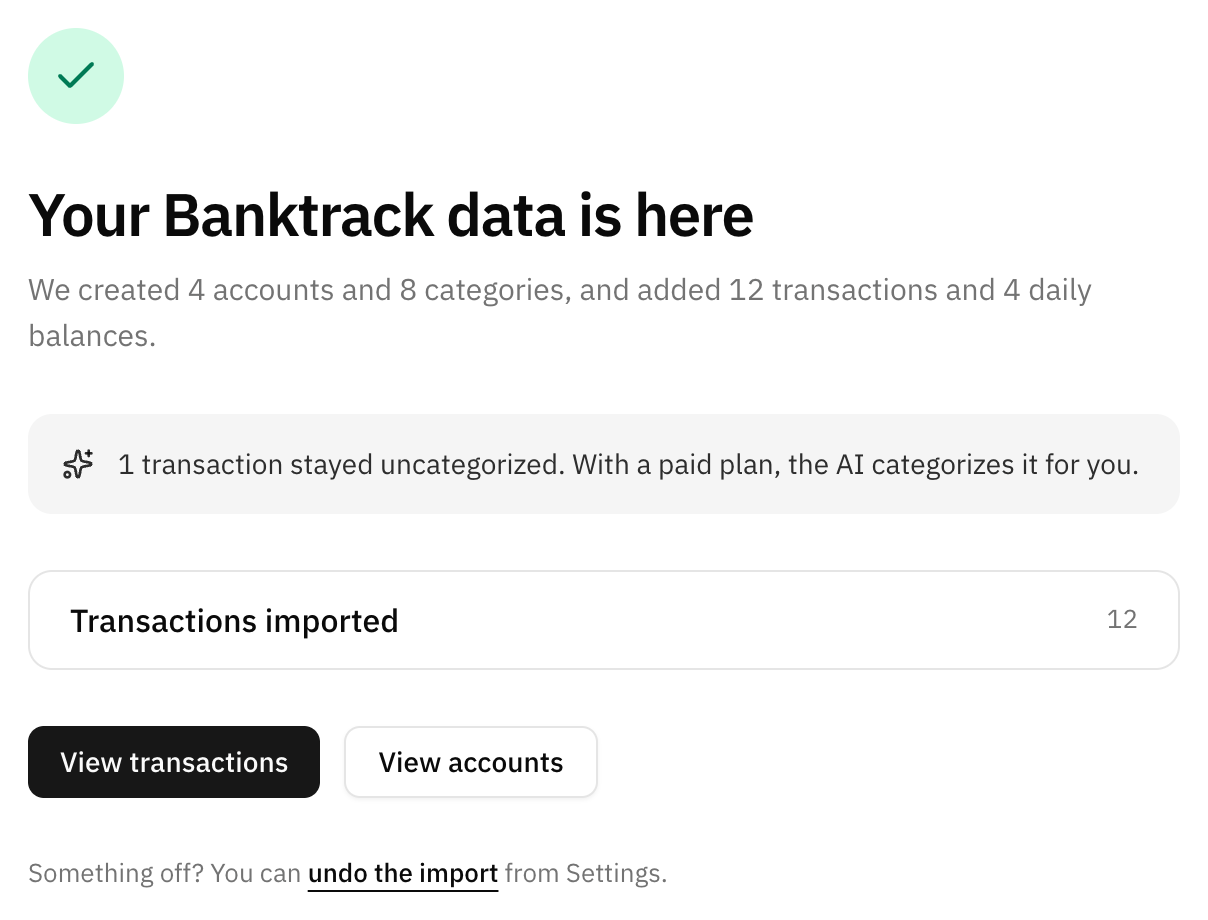
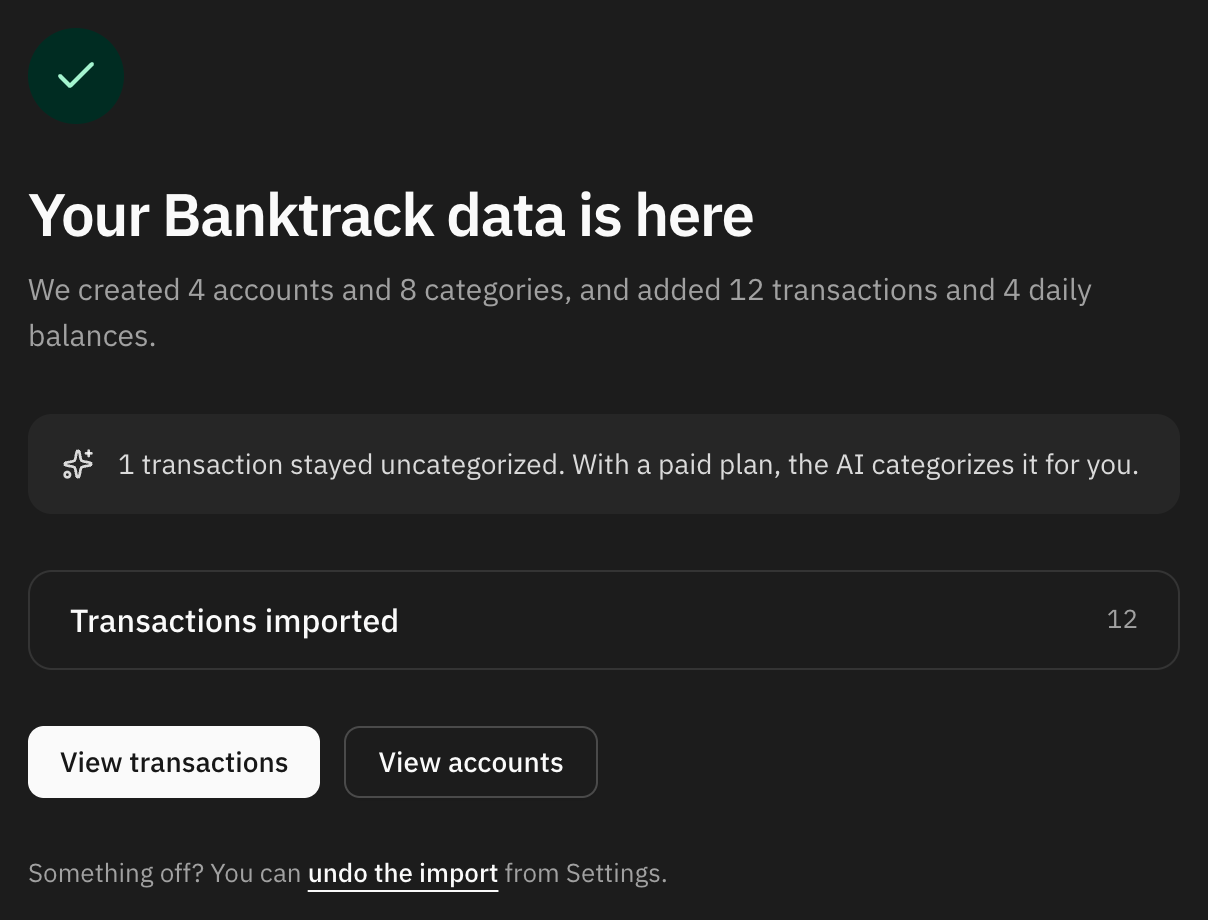
- Transactions without a category. On the paid plan, and if you have agreed to AI categorization, the AI categorizes them. While you are still setting up your account, the setup's own AI step takes care of them. Otherwise they wait for you in Transactions.
- Automation rules run on what arrives, but never replace a category the file brought.
- Duplicates. Importing the same file again creates nothing new: a row is skipped when its transaction ID, or its date, amount and description, match a transaction the account already had. Two identical rows inside the same file are both kept, as two real payments.
- Balances are only imported when the file has a balance column, and only for the accounts with values in it. In an account you already had, they fill the days that had no balance and never overwrite one you entered.
Undo an import
Every import is listed in Settings → Import from another app, with an Undo button.
Undoing removes everything the import created: the accounts, with all their transactions and balances, including anything you added to them afterwards; the categories and banks; and the transactions and balances it added to accounts you already had. Your own accounts stay. It runs in the background, and the list shows "Undoing…" until it finishes.
Transactions you filed by hand under one of those categories since the import stay, without a category. A bank the import created stays if you have put another account in it.
An imported account that you have since connected to your bank stays, without the imported transactions. What Start from scratch deleted before the import cannot be brought back.
FAQ
How is this different from importing transactions?
Import transactions brings one bank statement into one account, and is always available. The full import reads a whole export with many accounts, creates the accounts and categories, and is open during your first days.
My file has no account column. Can I still use it?
Yes. Choose All rows are one account in the Account field and everything goes into one account named after the file. For several accounts, import one file per account.
What is not imported?
Only the columns you map come in. Budgets, rules, attachments and anything else that is not a transaction stay in the other app.
My 15 days are over. Can I still import?
Write to us and we can open the full import for your account. Bank statements can be imported at any time with Import transactions.
Can I import a newer export later?
Yes, while the full import is open to you. Transactions you already imported are skipped, so only the new ones come in.