Dashboard
The dashboard is the first screen after you sign in: your net worth and how it has moved, every account at a glance, and what you have been spending on lately. Each block is a summary with a way into the page that has the detail.
Quick start
- Open Dashboard from the sidebar.
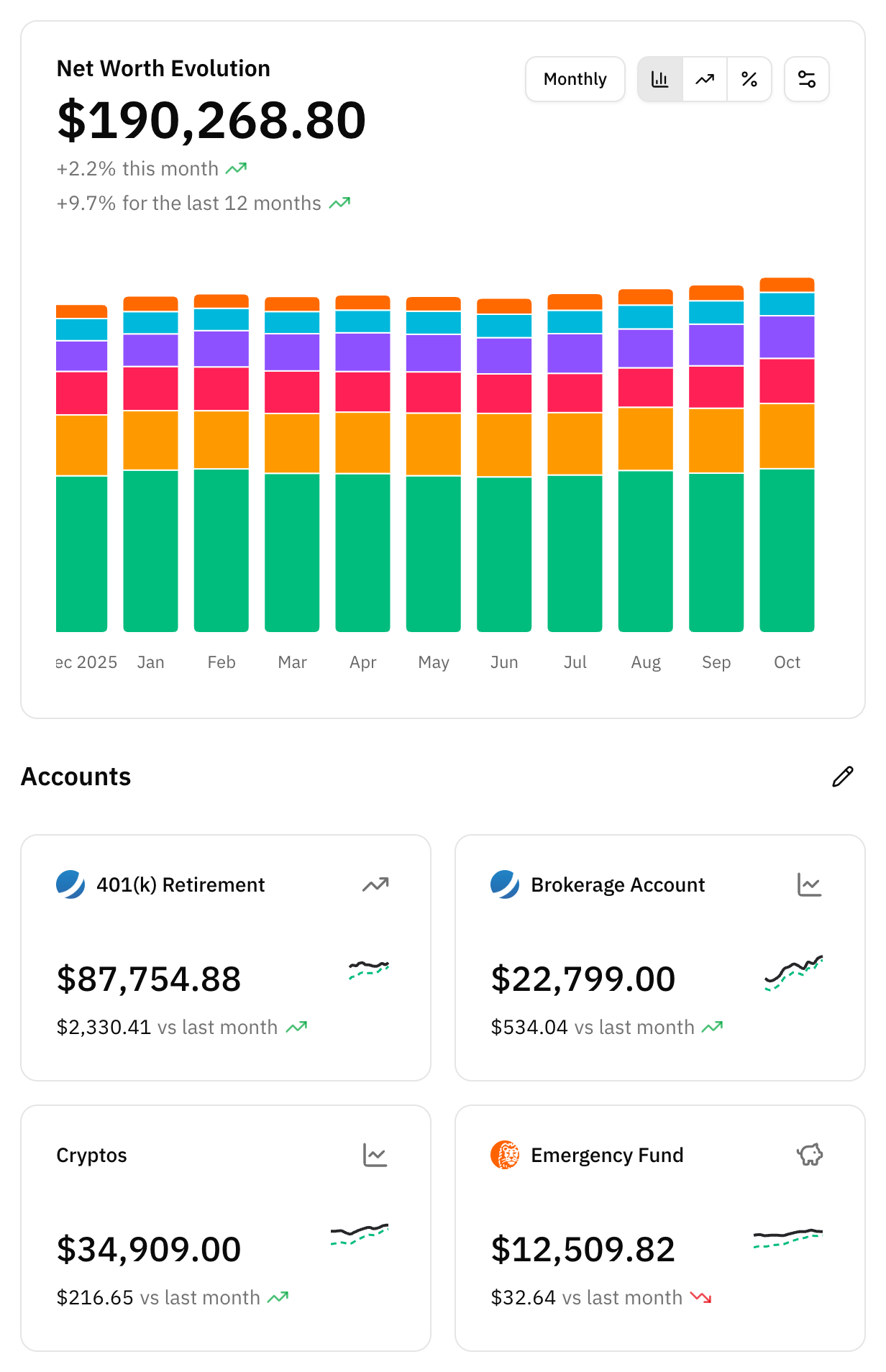
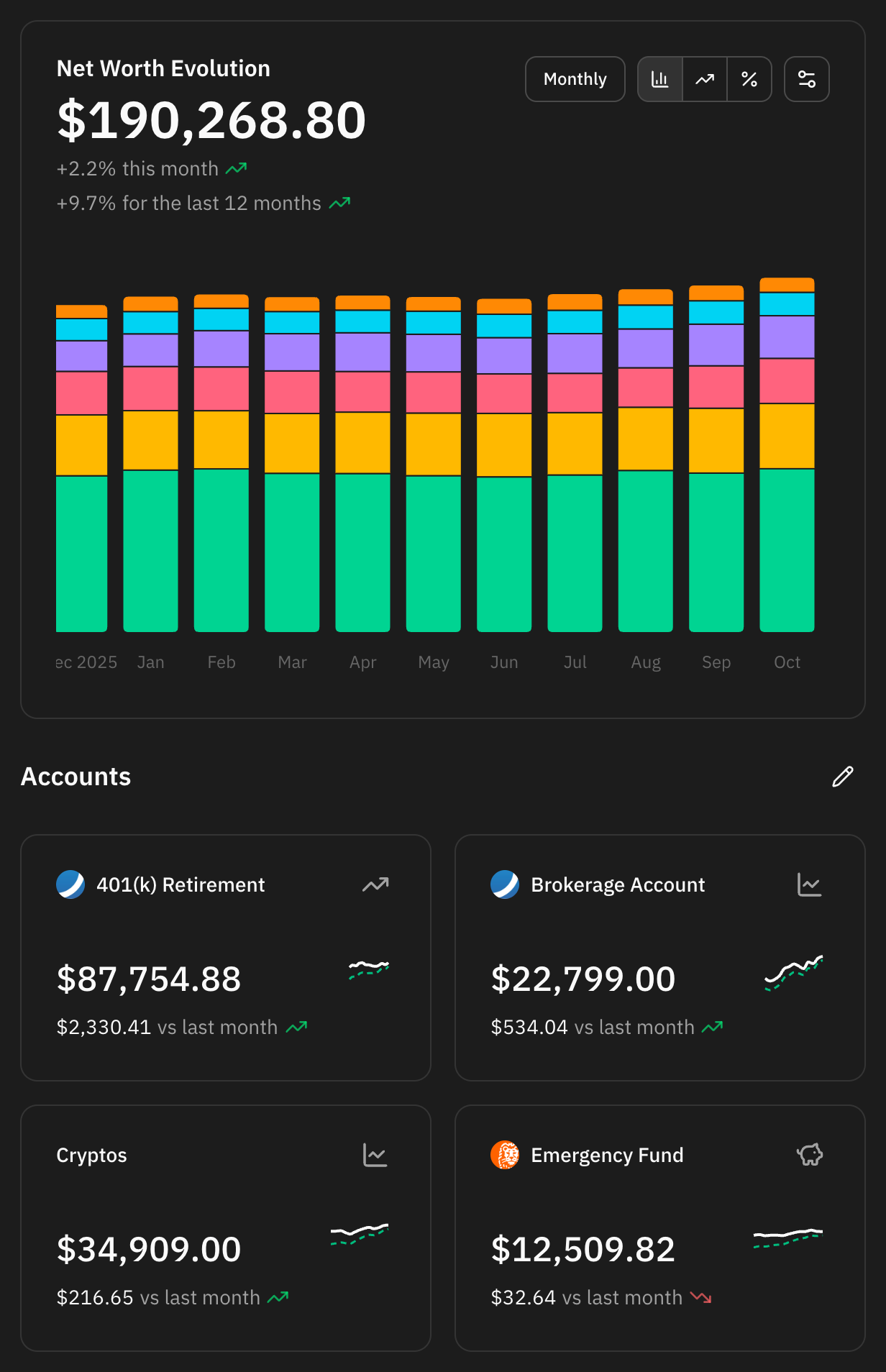
- Read Net Worth Evolution at the top: the total, and how it changed this month and over the last 12 months.
- Look down the Accounts cards for a balance that moved more than you expected.
- Check Top spending categories and Cashflow to see where this month's money is going.
- Switch on privacy mode from the user menu before you open the app in public.
What is on the dashboard
From top to bottom:
| Block | What it shows | Where to go for more |
|---|---|---|
| Monthly summary notice | That last month's report is ready, with its headline | Monthly summary |
| Net Worth Evolution | Your net worth over the last 12 months or 30 days | Accounts › Net worth |
| Accounts | One card per account: balance, change against last month, sparkline | Accounts |
| Monthly savings | This month across your monthly savings goals | Savings goals |
| Top spending categories | Where your spending went in the last 30 days | Categories |
| Top labels | Spending per label in the last 30 days | Labels |
| Cashflow | This month's income, expenses, net and savings rate | Cashflow |
Some blocks only appear when they have something to say: the notice when there is a report you have not dismissed, Monthly savings when you have a monthly goal, and Top labels when something you spent in the last 30 days carries a label.
Net worth
What goes into it
Net worth adds up your accounts' balances, converted to your currency:
- Checking, savings, investment, retirement and other accounts always add their balance. An overdrawn account takes away from the total.
- Real estate adds its market value, and loans subtract what you owe, but only when you include them. Both start off for new users.
- Credit cards never count, whatever you owe on them.
- An archived account stops counting from the day it was archived. The months before keep it.
The Accounts page has the same rules, and Credit cards explains why cards are left out. Accounts hidden from the dashboard still count: hiding only takes the card away.
Including loans and real estate
Open the settings button on the chart (the sliders icon, top right) and switch Include loans or Include real estate. The choice is saved to your account and applies to your net worth everywhere, not only to this chart: the achievements and the monthly summary use it too.
Reading the chart
The large figure is your net worth today. Under it, two trends:
- this month compares today with the end of last month.
- for the last 12 months compares today with a year ago.
Hover or tap a trend to see the same change as an amount.
Each bar is a month, stacked by account, so you can see which accounts make up the total and which one grew. With loans included, the bars are scaled so their height is your net worth, and hovering a month lists what is owed next to the assets. If what you owe is more than what you have, the month is drawn as a bar below zero.
The controls next to the title change the view:
- Monthly / Daily switches between the last 12 months and the last 30 days. In the daily view the trends read today and for the last 30 days.
- The three icons pick the chart: the bars draw the stacked balances, the trend line the change from one month (or day) to the next as an amount, and the percent sign the same change as a percentage.
On a phone, the period and the chart type move into the settings button.
Account cards
Under the chart there is one card per account, in the order you choose. Most cards show:
- The balance today, in your currency.
- The change against last month, green when it went up and red when it went down. Hover or tap it for the change as a percentage.
- A sparkline of the last 12 months. Hover it to read a month's balance, and for investment, retirement and savings accounts what you had invested.
A few cards work differently:
- Credit cards show how much of the limit is in use instead of a balance, with no change against last month, and their sparkline follows that usage through the current statement. See Credit cards.
- Real estate with a linked mortgage shows its equity: the market value minus what is still owed, with "Mortgage at" and the lender under the name. The loan itself gets no card of its own.
Click an account's name to open it. On a manual account other than a credit card, click the balance to open Update balance (Update owed amount on a loan) and record a new figure without leaving the dashboard. Connected accounts update their balance on their own, so theirs is not clickable.
Hiding and reordering accounts
Press the pencil next to Accounts to open Edit accounts:
- The eye on each row hides that account from the dashboard, or brings it back.
- The handle on the right drags it to a new position.
The order is shared with the Accounts page. Hiding only affects the dashboard: the account still counts towards net worth and appears everywhere else. To put away an account you no longer use, archive it instead.
Spending blocks
Top spending categories
Your ten largest spending categories over the last 30 days, each with its share of the total and a bar to compare them. The arrow next to a category compares it with the 30 days before, and is left out when there was no spending to compare with.
- A parent category with subcategories can be expanded to see how it splits.
- Clicking a row opens the transactions behind it, already filtered.
- Analyze opens Category analysis: a category's spending month by month over the last 12 months, its monthly average, and whether the last six months were higher or lower than the six before.
Top labels
The same view for labels: the ten labels you spent most on in the last 30 days. A transaction with two labels counts under both, so the labels can add up to more than you spent. The labels behind savings goals are left out, because they track saving, not spending.
Cashflow
This calendar month in four figures: Income, Expenses, Net and the Savings rate. The savings rate turns green at 20% or more, yellow between 0% and 20%, and red when you spent more than you earned. View details opens the full Cashflow page, which explains how each figure is worked out.
Monthly savings
When you have a monthly savings goal, a card shows this month across all of them: what you have saved against the sum of their targets, the days left, how many goals you met last month, and a line per goal. See all opens Planning. The savings goals page explains the figures.
The monthly summary notice
When a new monthly summary has been sent, a notice at the top of the dashboard says it is ready and gives its headline. Open it shows the report; the cross puts the notice away on every device.
Privacy mode
Privacy mode hides your amounts so you can open Whisper Money on a train, in a café, or while sharing your screen.
Turning it on and off
Open the user menu (your name at the bottom of the sidebar) and choose Enable privacy mode. Choose Disable privacy mode in the same place to switch it off. While it is on, the logo turns into a birdhouse, so you can tell at a glance.
The setting belongs to the browser, not to your account: turning it on in your laptop leaves your phone as it was, and it stays on in that browser until you turn it off.
What it hides
- Amounts. On the dashboard, in the transaction list, in budgets, goals and
cashflow, the digits are replaced by asterisks, so
$1,234.56reads$*,***.**. Chart tooltips are masked too. - Transaction descriptions in the transaction list. Each one is swapped for a made-up description such as "Grocery Store" or "Coffee Shop Purchase", in your language. The same description always gets the same stand-in, so the list still reads like a list. Categories, labels and dates are left as they are.
Percentages stay visible: the trends, the savings rate and shares give no amount away, and they keep the dashboard useful with the numbers hidden.
Privacy mode is a screen for casual glances, not a lock. A few places still show real figures: the headline of the monthly summary notice, the axis of the month-over-month charts, and some dialogs where you edit a transaction or a balance. Descriptions also stay readable outside the transaction list, for example when splitting a transaction or linking it to a goal.
Revealing one block
Sometimes you need one figure, not all of them. With privacy mode on, these dashboard blocks get an eye button next to their title: the net worth chart, every account card, Top spending categories, Top labels and Cashflow. Monthly savings has none, so its amounts stay hidden. Press it to show that block's amounts, tooltips included, while the rest of the page stays hidden. Press it again to hide them.
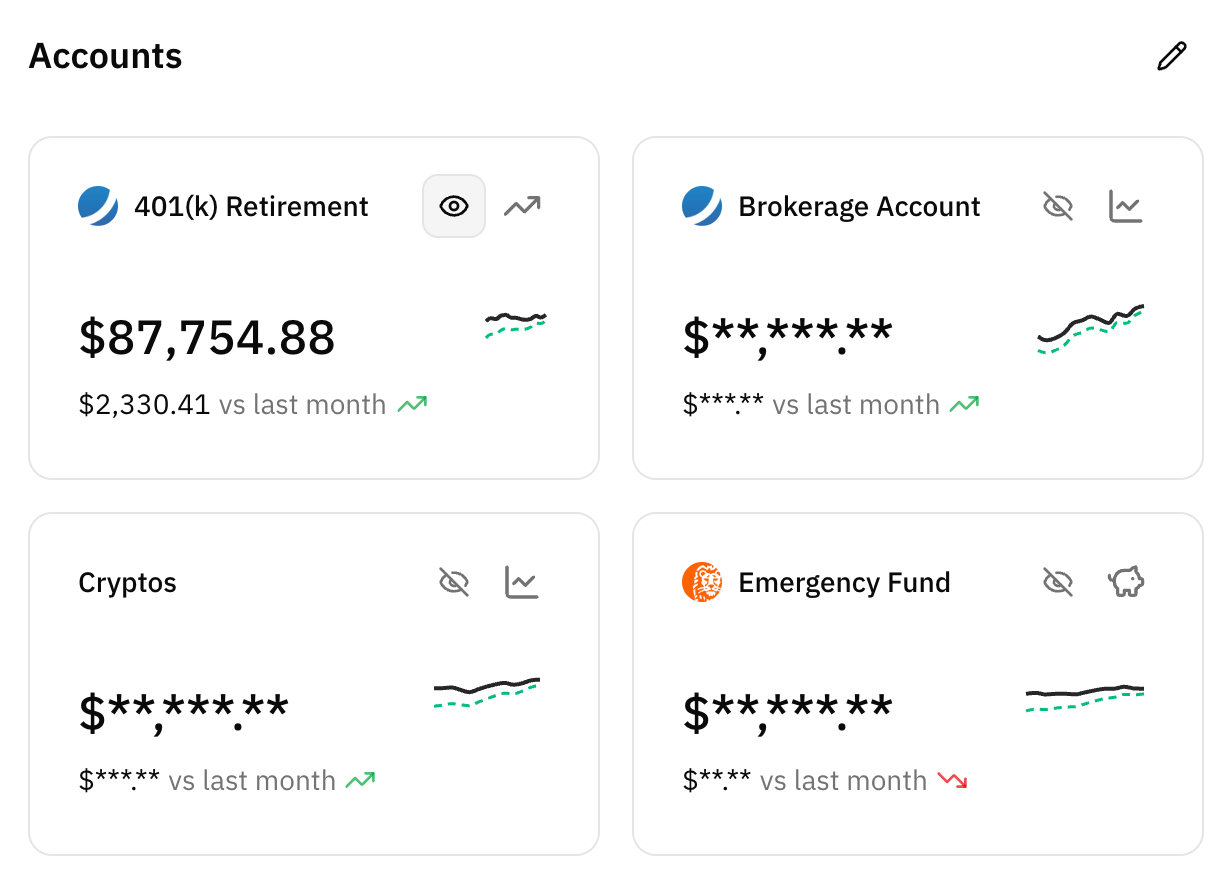
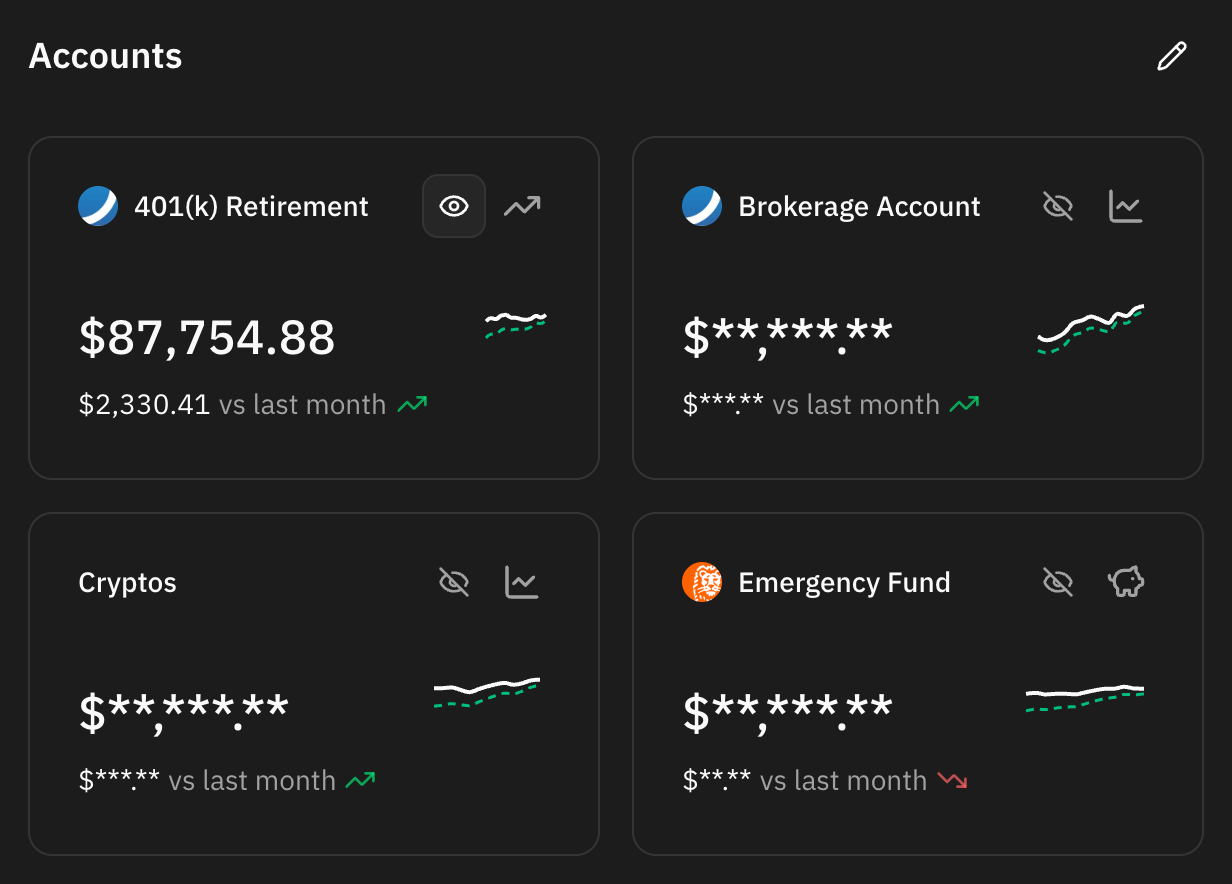
A reveal is never remembered. Reloading the page, leaving the dashboard, or turning privacy mode off and on hides every block again.
FAQ
Why doesn't my net worth match the sum of my account cards?
The cards include accounts that net worth leaves out: credit cards always, and loans and real estate unless you include them. A real estate card with a mortgage also shows equity rather than market value.
Why is my loan or my flat missing from net worth?
Loans and real estate start off for new users. Switch on Include loans or Include real estate in the chart's settings.
I hid an account. Why is it still in the chart?
Hiding takes the card off the dashboard and nothing else. The account still counts towards net worth. Archive it if you no longer use it.
Why is the Top labels card missing?
Nothing you spent in the last 30 days carries a label, or the only labels are savings goals'. The card appears as soon as there is labelled spending.
Does privacy mode hide my data from Whisper Money?
No. It only changes what the screen shows, in that browser. Your data is stored the same way with privacy mode on or off.
Why did a block hide its amounts again?
Revealing a block lasts until you reload, leave the dashboard, or toggle privacy mode. Press its eye button again.
Does privacy mode follow me to my other devices?
No. It is saved in the browser where you turned it on. Turn it on in each browser you want it in.